Got questions? Find answers!
Choose a topic below to get started.
NEW UPDATE FOR JANUARY 2026
- What is changing?
Duo is updating its security requirements. There will be a soft cutover on February 2, 2026, and a hard cutover on March 31, 2026. Phones running older versions of Android and iOS will show warning messages or stop supporting Duo Push after these dates. On April 15, 2026, Mozilla and Google Chrome will distrust DigiCert certificates in Duo’s existing certificate authority (CA) pinning bundle. This out-of-band distrust event will affect all Duo products that use certificate pinning. This removal may affect other non-Lamar services as well for older devices.
- Why am I seeing warning messages?
Starting April 15, 2026, Chrome and Firefox will no longer trust certain certificates used by Duo. Older devices will show warnings when approving Duo Push during the soft‑cutover period (Feb 2–Mar 31). You can tap OK to continue.
- What happens during the soft and hard cutover?
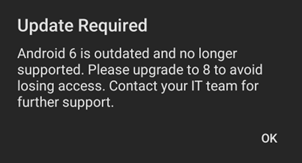
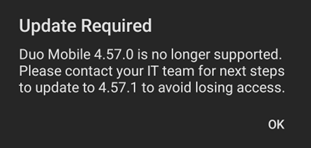
Soft Cutover (Feb 2–Mar 31, 2026): You will see warning messages when approving Duo Push but can continue to use it.
Android 7 and below, iOS 15 and below:
Android 8, 9, and 10:
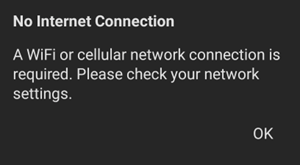
Hard Cutover (March 31, 2026 and after): Devices running Android 11 or below, or iOS 16 or below, may no longer be able to use Duo Push or Verified Push.
All users who are not updated will see the following during the hard cutoff period (March 31, 2026 and beyond):
- How does this affect me?
If your phone runs Android 11 or earlier, or iOS 16 or earlier, Duo Push may stop working after March 31, 2026. You can still log in using Duo Passcodes, SMS/Text codes, or a hardware security key (like a YubiKey).
- How do I check my phone’s software version?
- What should I do if my device is affected?
The best option is to update your phone and the Duo Mobile app to the newest version to stay secure.
If you cannot update immediately, you may still use Duo Passcodes, SMS/Text codes, or a hardware security key (YubiKey) as an alternative.
- Additional options for Android 8-10 users:
Advanced Android users have an additional option for the Duo Mobile App. Please visit the link below from Duo for instructions and file downloads for sideloading the Duo Mobile App.
What's New With LEA-2-Step
- Why am I getting a pop-up on my browser saying, “No Passkey available”?
Web browsers have been implementing a newer technology called “Passkeys”.
Passkeys are potentially safer and an easier alternative to passwords.
Passkeys allow sign-ins to applications and websites with a biometric sensor (such as fingerprint scans, touch-id, face-id), PIN, or patterns.
Not all browsers and operating systems currently support Passkeys.
With LEA-2-Step, the following combinations of browsers and operating systems may be used with Passkeys.
- Windows 11 and Chrome 108 or later
- macOS 13 and Safari or Chrome 108
- iOS 16 or iPadOS 16
- Android 10 and later
If your computer meets this requirement and does not have a Passkey configured, you may see the “No Passkey available” message when attempting to log into an application.
To bypass this:
- Select the "close" button.
- Select "Other options" if prompted for "Use Touch ID".
For more information on Passkeys, visit the following link:
General
- What applications require LEA 2-Step?
All services that users log in with an LEA account (eg. jdoe@lamar.edu) will require LEA 2-Step.
- Where can I download the Duo Mobile app?
The app is found in the App Store or Google Play Store. If you have trouble finding the Duo Mobile app via search, it can be accessed through mobile app stores by visiting:
- Which devices are supported by LEA 2-Step authentication?
- Android phones
- iPads
- iPhones
- Apple watches
- Cell phones that can receive text messages
- Yubikey security keys
- Which browsers are supported by LEA 2-Step authentication?
- Chrome
- Firefox
- Microsoft Edge
- Safari
- What versions of Android and iOS are supported by Duo Mobile?
- Am I required to use my personal mobile device for LEA 2-Step?
While it is strongly recommended that you enroll your mobile device (personal or Lamar University issued) and use the “Duo Mobile” app for Duo login, it is not required.
Below are alternative devices. You are encouraged to enroll more than one device and/or device type:- Tablet, iPad and Apple Watches—pushes are sent to "Duo Mobile" app.
- Personal security key such as Yubikey—creates unique passcode which changes with each log-in.
- What do I do if my phone is not supported by Duo Mobile?
Searching for the Duo Mobile app on unsupported devices usually provides empty results.
Some alternatives you can use are text messages (SMS) or a security key, such as Yubikey, with LEA 2-Step.
- What if I don't want to use LEA 2-Step?
LEA 2-Step decreases the risk of compromise because an attacker would need more than just your username/password to access your account.
If you still do not want to use LEA 2-Step, you will not be able to access Lamar Services such as email and LU Learn.
- Can I opt out of LEA 2-Step?
No, you cannot opt out of LEA 2-Step.
LEA 2-Step decreases the risk of compromise because an attacker would need more than just your username/password to access your account.
- Will I receive spam calls/notifications if I use my personal device for LEA 2-Step?
No, Lamar University will only use the information provided for Duo purposes.
- Will I be able to use LEA 2-Step on my non-smartphone?
Yes, any cell phone that can receive text messages will work, but it will not include the advantages of the “Duo Mobile” app (passcodes, prompts, etc.) and may result in regular cell phone charges for SMS depending on your phone service.
- Does it cost me anything to use LEA 2-Step via my smartphone?
Using the app or a passcode on the app will not incur any charges from your carrier.
Text messages are sent only when you request them, and they will be billed by your carrier in the same way that any other text message or call would. Lamar will not reimburse you for these charges.
If the charges, when using Duo, exceed a level that you are comfortable with, then consider switching to a security key such as a Yubikey, rather than a cell phone for the service.
- Can I use multiple devices, or am I restricted to one device?
You can set up LEA 2-Step on multiple mobile devices (cell phones, tablets, etc.). It is recommended that you register at least two commonly used devices, such as a cell phone and tablet.
- On a computer, visit https://www.lamar.edu/lea2step.
- Use the "Get Started with LEA 2-Step or Manage your registered devices", to register second device.
- Which security keys are supported by LEA 2-Step?
LEA 2-Step currently supports security keys such as Yubikey models that support FIDO2 / WebAuthn protocols.
- Where can I buy security keys?
While we strongly recommend the use of the “Duo Mobile” app for LEA 2-Step, you can purchase security keys from online retailers such as Amazon.com.
- Are there known limitations to Security keys?
Security keys are currently not compatible with desktop-based applications like Office (Word, Powerpoint, Outlook and Teams).
You will need to use the PUSH (via DUO Mobile), Passcode, or Text message-based second step for these applications.
- Why can I no longer access Lamar services or get the error "access denied"?
Your account is not registered with LEA 2-Step. Register one or more devices for LEA 2-step.
- Can I reset Duo Mobile?
If you have deleted your “Duo Mobile” app or reset your mobile device, go to the app store and re-install the “Duo Mobile” app. If your device doesn't meet the minimum version that is supported by Apple or Android, you might not be able to download the app again from the app store.
If you do not see Lamar University as an option in your “Duo Mobile” app, you will need to re-activate the app following the steps from Mobile Device or Number Change “New phone - Same number”.
- How does “Remember me for 21 days” work?
Most people log into the same services, from the same device, many times a day. Each login will require 2-factor authentication. To reduce the repeated requests, you can mark a log-in with the "remember me" feature, which will remember your device for 21 days.
At the first successful log-in of the day, select "Remember me for 21 days". Subsequent log-ins on the same device and web browser will now only require an LEA username and password to access the service.
- How can I set up to automatically use "preferred default device"?
- Visit Lamar LEA Step-2.
- Click "Get Started with LEA 2-Step or Manage your devices".
- Log in with LEA username and password.
- Select "Passcode" or "Push".
Under "My Settings and Devices":
- Default Device: Select your preferred default device from the drop-down menu.
- When I log in: Select "automatically send this device a duo push".
- Click on "Save".
- Why do I get the error message "CAS Unavailable"?
If your device has a default language set to something other than U.S.-English, you may receive an error message stating that CAS is unavailable. This is due to an incompatibility between Lamar's log-in system and DUO.
To rectify this, set U.S.-English as the first language option. Additional languages can be added without interference.
Lamar is currently working to resolve this issue.
- Why am I unable to select “Push”, “SMS” or “Passcode” on the DUO screen, when I try to log-in?
We have identified that certain extensions, with certain browsers, can interfere with the login process. In particular, the following extensions with the following browsers are known to cause issues:
- "Read&Write for Google Chrome” on Chrome (Mac, PC and Chromebook).
To rectify this, temporarily disable the extension during log-in and re-enable it after you have logged in.
- What should I do if I lose my mobile device and cannot log into Duo?
If you have lost your phone, or any other mobile device enrolled in Duo, unfortunately, you will not be able to access applications requiring Multi-Factor Authentication, without the registered device.
Choose one of the following options:
- If you have a secondary device enrolled (e.g., a tablet or security key), log into the LEA 2-Step Device Management Portal at lamar.edu/lea2step, with the secondary device. Click My Settings and Devices. Next to your mobile device, click Device Options, and then click the trash can to delete that device.
- If you do not have any other devices enrolled in Duo, contact the IT Service Desk at (409) 880-2222 or servicedesk@lamar.edu for a bypass code to enroll a new device.
Security
- Why do I need a second layer of security on my account?
With increasing security attacks across higher education institutions, passwords alone are not a sufficient way to protect resources.
LEA 2-Step decreases the risk of compromise because an attacker would need more than just your password to access your account.
- Why have I received a notification from Duo but haven't tried to log in anywhere?
- Deny the request to authenticate.
- Report the incident as fraudulent.
- Change your password immediately by visiting https://passwordreset.lamar.edu.
- I tried to register a device but already see one I do not recognize. What do I do?
Please get in touch with the IT Service Desk to escalate a support request to IT Security.
The IT Service Desk can be contacted at (409) 880-2222 or emailed at servicedesk@lamar.edu.
- My account is locked out. What should I do?
The most common reason why your account is locked is that you have entered an incorrect password multiple times. You may reset your password by visiting Password Reset or contact the Service Desk at (409) 880-2222 or servicedesk@lamar.edu. If you email, be sure to include a screenshot of the error message.
Location/Travel
- I’m in a location where I have poor cell coverage. How can I use LEA 2-Step?
In cases where cell coverage is not available, use the “Duo Mobile” app to generate a passcode. To generate a passcode, open your “Duo Mobile” app, click on the down arrow next to “Lamar University” and the passcode will be displayed. Use the passcode as your second step.
Note: The passcode generated changes periodically and will be different for each login.
- How can I continue to use LEA 2-Step authentication when traveling abroad?
Be aware of your cell service carrier’s international rates. If you are planning to use your device normally while traveling, then using the device as the second step will not change. If you are traveling abroad and will not have cell phone service, use the passcode from the “Duo Mobile” app.
To generate a passcode, open your “Duo Mobile” app, click on the down arrow next to “Lamar University” and the passcode will be displayed. Use the passcode as your second step.
Note: The passcode generated changes periodically and will be different for each login.
Passcodes
- What is the difference between a "bypass code" and a "passcode"?
- Bypass codes are codes given to you when you call the ServiceDesk.
- Passcodes are generated by you, either using the “Duo Mobile” app or sent to you via text message.
- I have an account but am not able to get passcode. What do I do?
If you have activated your LEA account with DUO and do not have access to the device registered for the second step (Cellphone, security key, etc.), you will need to call the Service Desk at (409) 880-2222 to obtain a bypass code.
- Why is the Push is not working?
If the Push does not work, you can use your passcode or bypass code as your second step.
For example to connect to the campus network via FortiClient:
- Enter LEA username in the Username.
- Enter LEA password followed by a "," (comma), and then the passcode—E.g. "MySecure1@Password,913171"
- Click on "Connect".
Mobile Device or Number Change
- New Phone - Same Number
- Download the "Duo Mobile" app on your new phone
- On a computer, visit Lamar LEA 2-Step.
- Click on "Get Started with LEA 2-Step or Manage your registered devices".
- Log in with your LEA username and password.
- Click “Enter a passcode”.
- Click “Text me new codes”.
- Enter one of the 7-digit passcodes offered from the text.
- Enter and click “Log In”.
Under "My Settings and Devices"
- Click on "Device Options", next to listed device.
- Click on "Reactivate Duo Mobile".
- Follow the activation wizard.
- New Phone - New Number (Old phone no longer accessible)
If you do not have a second device registered, call the Service desk for a bypass code.
- New Phone - New Number (Old phone still accessible)
- Download the "Duo Mobile" app on your new phone.
- On a computer, visit "Lamar LEA 2-Step".
- Click on "Get Started with LEA 2-Step or Manage your registered devices".
- Log in with your LEA username and password.
- Click “Enter a passcode”.
- Open "Duo Mobile" app on the OLD phone and click on the down arrow next to "Lamar University".
- Enter the displayed 6-digit number in the computer and click "Log In".
Under "My Settings and Devices"
- Click on "Device Options", next to listed device.
- Click on "Trash can" icon followed by "Remove" to delete the old phone.
- Click on "Add Another Device".
- Follow the activation wizard.
- Same Phone - New Number
- On a computer, visit Lamar LEA 2-Step.
- Click on "Get Started with LEA 2-Step or Manage your registered devices".
- Log in with your LEA username and password.
- Open "Duo Mobile" app on the phone and click on the down arrow next to "Lamar University".
- Enter the displayed 6-digit number in the computer and click "Log In".
Under "My Settings and Devices"
- Click on "Device Options", next to listed device.
- Click on "Trash can" icon followed by "Remove" to delete the old number.
- Click on "Add Another Device".
- Follow the activation wizard.